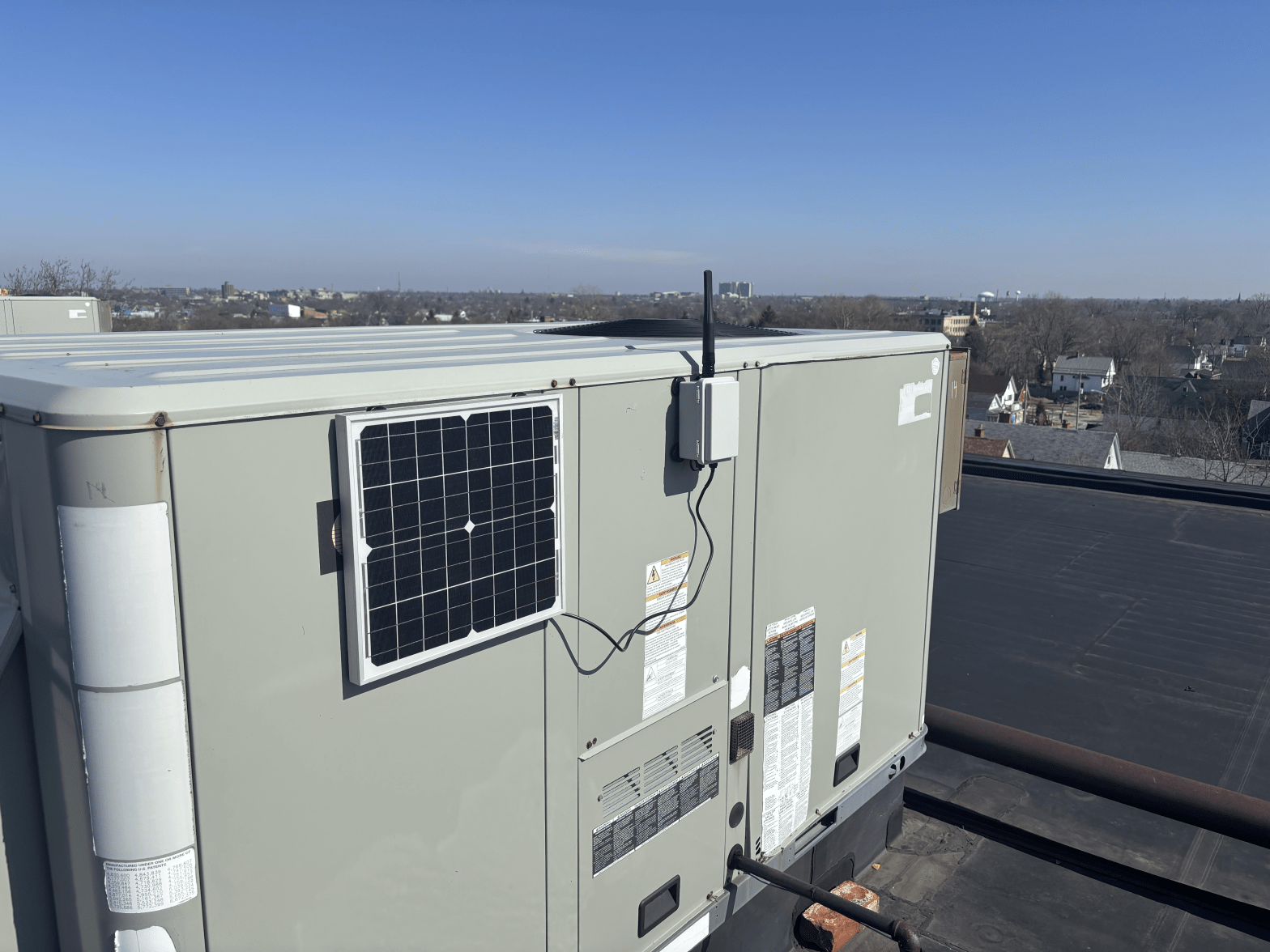
Hey BuffaLoRa community!
Unlike the often-discouraged repeater devices in Meshtastic, repeaters are the lifeblood of a MeshCore network. Because MeshCore companion devices don’t rebroadcast, repeaters are essential for bridging your traffic across the network. While this requires more nodes overall to build out the map, MeshCore compensates by allowing up to 64 hops between nodes, among other benefits.
Plus, these repeater nodes don’t need to be the powerhouses we typically think of in a Meshtastic network. MeshCore repeaters can use the exact same hardware you may have previously used as simple clients. If you’re interested in helping build out our WNY MeshCore network, I’ve put together this guide to get you started.
Ready? Let’s dive in.
What you will need:
- A LoRa radio: (RAK, Heltec, Seeed, LILYGO, etc.). Almost all devices supported by Meshtastic will work with MeshCore.
- A semi-permanent location: MeshCore repeaters should be stationary.
- A reliable power source: USB, 5V, batteries, or solar.
Flashing:
MeshCores web flasher in my experience is the easiest method of flashing the MeshCore firmware on your device.
1) Plug your device into a computer running Chrome or a Chromium-based browser (like Edge) and visit https://flasher.meshcore.co.uk/.
2) Select your device type. I usually start by typing the manufacturer’s name and then picking the specific board.
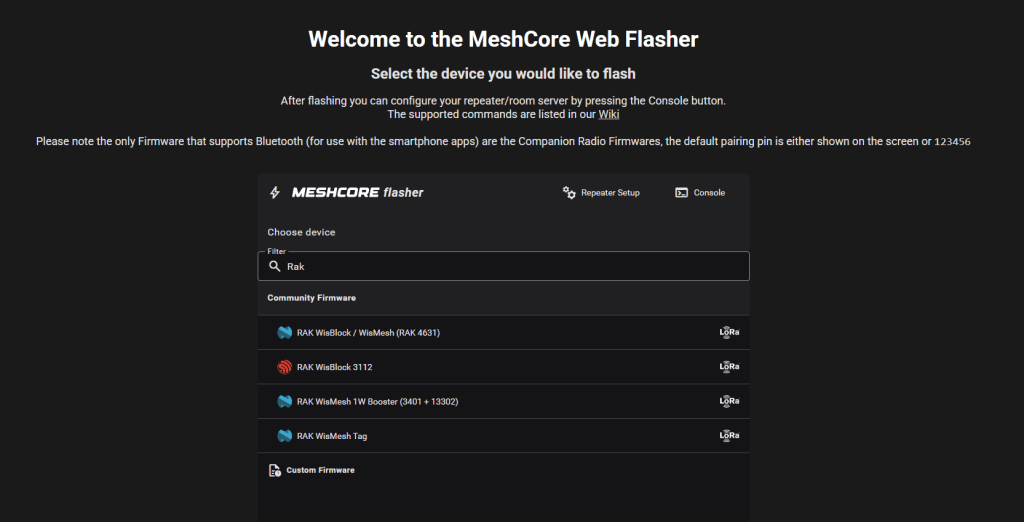
3) Choose “Repeater”
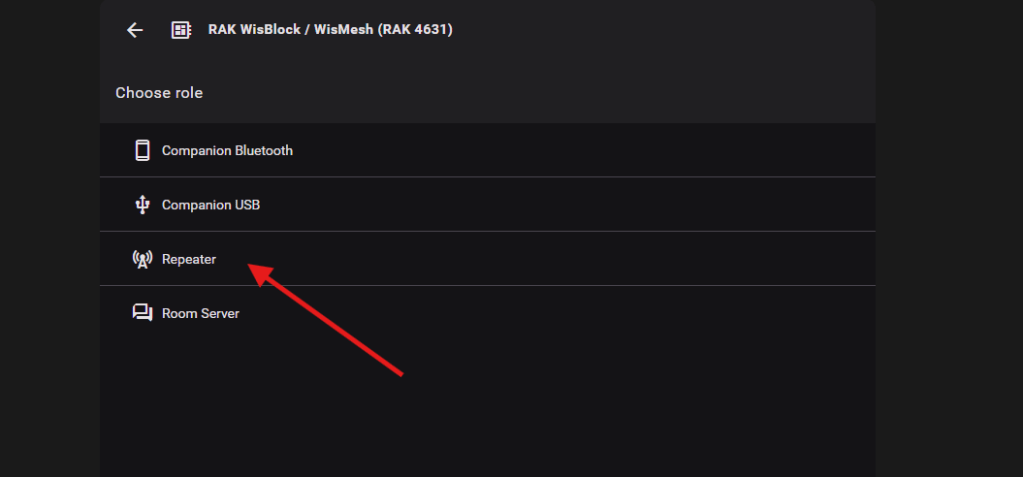
4) Flash your device. (Depending on your hardware, you may need to enter DFU mode first). Occasionally, you might get an error and need to repeat the process. The one time a flash failed for me, I just re-enabled DFU and tried again, and it worked perfectly the second time.
5) Note: MeshCore repeaters are not configured via Bluetooth! Select “Configure via USB.”
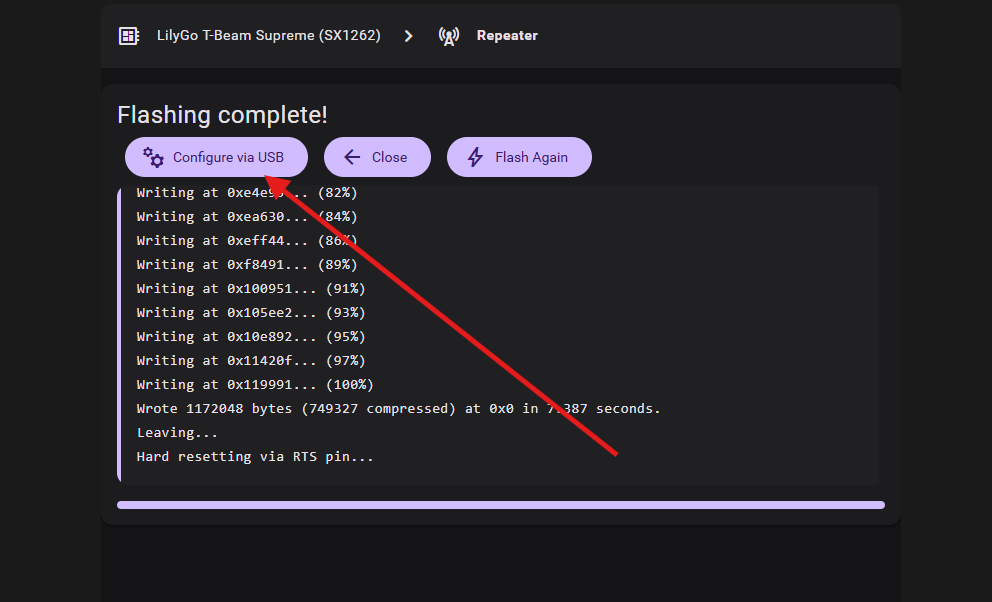
6) Configure your initial settings:
- Change the preset to “USA/Canada.”
- Give it a Name.
- Set an Admin password. This is how you will manage the device going forward.
- Send Advert (this helps your companion device find the new repeater).
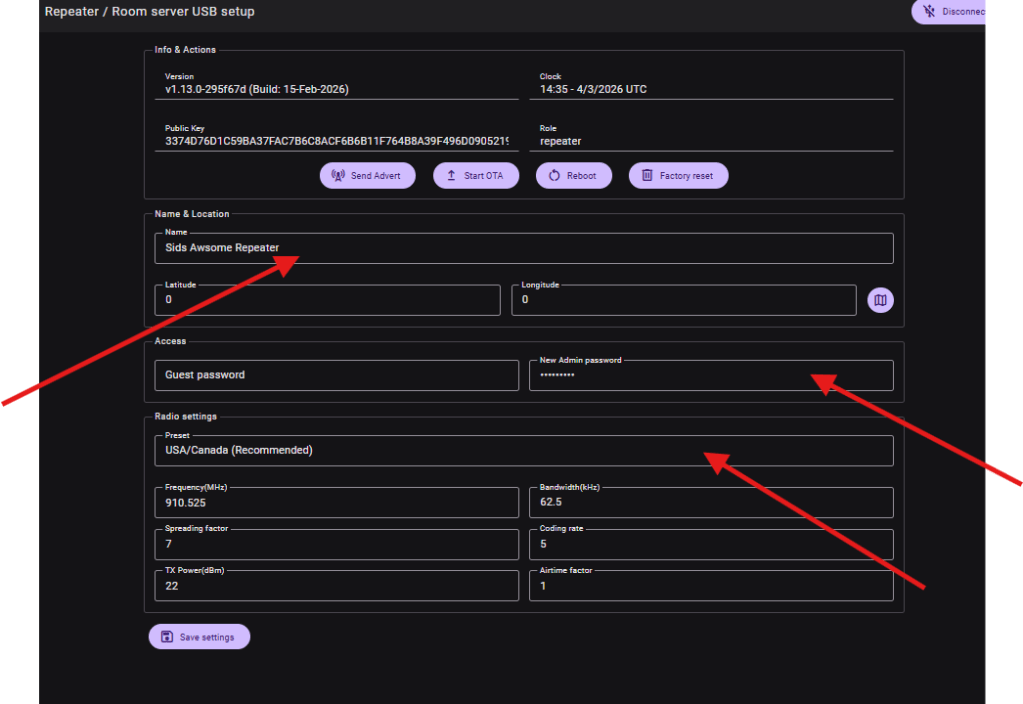
7) Congratulations you now have a functional Meshcore Repeater!!
Next we will will cover some settings I recommend.
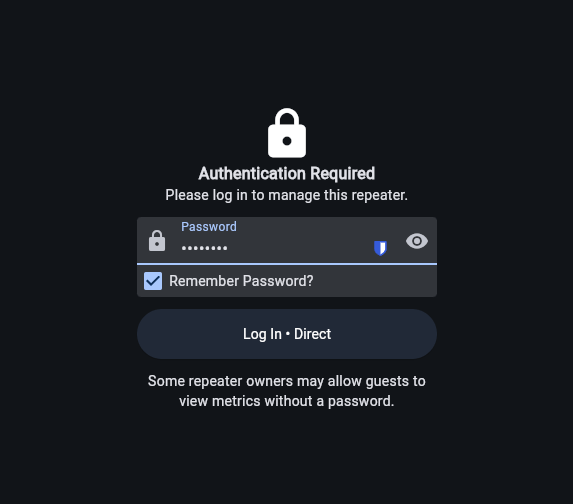
Recommended Settings
In order to configure a MeshCore Repeater, you must use a Meshcore core compaion device, or you can configure the node via USB using https://app.meshcore.nz/.
Start by selecting Settings and using the the Refresh icon to pull your device info. Check to ensure your Frequency is set to 910.525 MHz, and that you have your name set as your choosing.
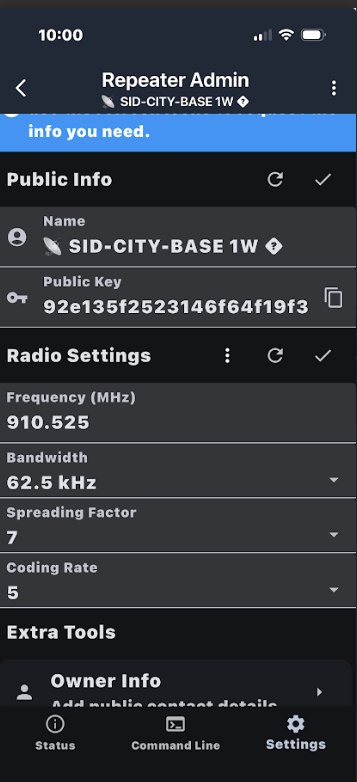
Owner Info
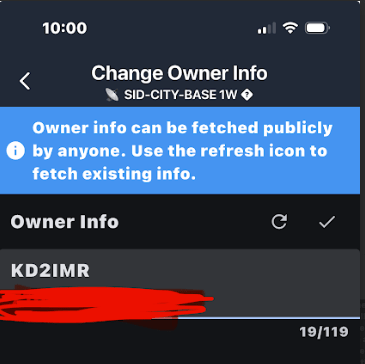
Owner Info is visible if a repeater is configured with a blank “Guest Password.” I choose to include my Call Sign and email address so that if there’s ever an issue with my repeater, other MeshCore users can notify me. This is completely up to you
Advert Intervals
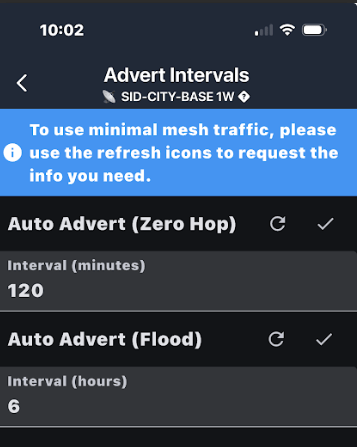
MeshCore is very light on flooding the network with announcements. Since we still have relatively few MeshCore Repeaters online in the spring of 2026, my recommendation is to set Zero Hop to 120 minutes, and Flood to 6 Hours.
Position
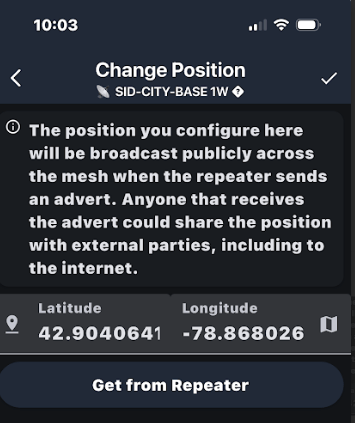
Whether you list your repeater’s position is your call. If you opt to set a position to help other Core users find your node, I have a few tips:
- Use the map rather than a GPS module. GPS modules constantly drain energy, so I opt to leave them off my repeaters and set my position to a general vicinity rather than a precise location. Just select the Map, zoom into your area, pick a spot, and click the checkmark to save.
Sync Clock
Sometimes you need to reboot your device several times and re-sync to get the clock correct. (Don’t worry, this is a known issue).
Repeat Settings
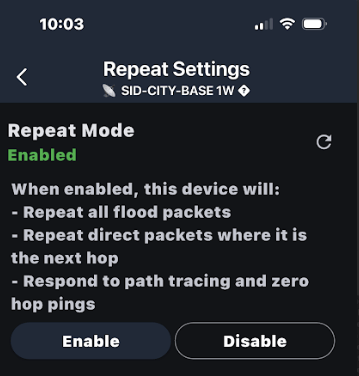
To actually help build the network, I highly recommend you ensure “Repeat Mode” is enabled.
Those are my standard recommendations, though your final config may vary depending on your specific hardware and deployment location. If at any time you run into issues with MeshCore, please don’t hesitate to reach out to me on Discord at @Sid-NY.
 BuffaLoRa